
How to Make Attendance Sheet in Excel ?
If you want to know how to make attendance sheet in Excel, the good news is that you only need a few columns, a handful of simple formulas, and about fifteen minutes. An attendance sheet in Excel lets you record who was present, absent, or on leave every day, and it calculates totals and percentages for you. Once you understand the basic attendance sheet format in Excel, you can adapt it for a classroom, an office, or a small business.
In this guide, you will build a monthly Excel attendance tracker from scratch. You will learn which columns to include, which formulas to use, how to color-code attendance automatically, and how to adjust the sheet for students, office teams, and employees.
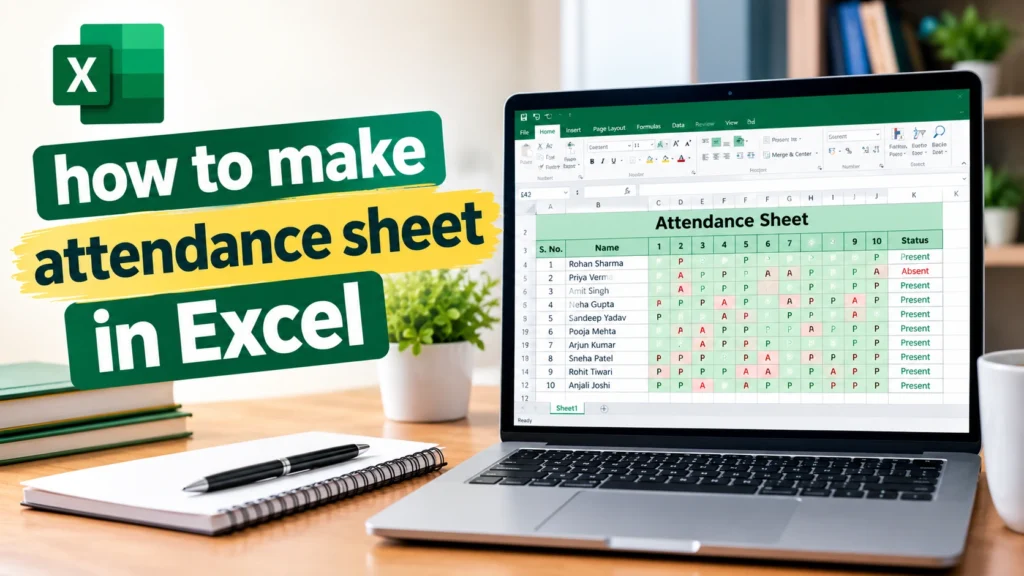
What Is an Attendance Sheet in Excel?
An attendance sheet in Excel is a spreadsheet that records the daily presence of people, such as students in a class or employees in a company. Each row usually represents one person, and each column represents one date. A short code in each cell (for example P, A, or L) shows that person’s status for the day.
Teachers, school administrators, HR professionals, office managers, and team leads all use this kind of sheet. Its main benefits are:
- Everything in one place: a whole month of attendance fits on one screen.
- Automatic totals: formulas count present days, absent days, and leave days for you.
- Easy reporting: you can sort, filter, and share the data, or turn it into a monthly attendance register.
- Flexibility: you can add columns for departments, classes, or notes.
How to Make Attendance Sheet in Excel Step by Step
Follow these steps to create a monthly attendance sheet. The layout below keeps names in column A and the 31 possible days of the month in columns B to AF, so the formulas later in this guide match the cell references exactly.
Step 1: Open a blank workbook
Open Microsoft Excel and choose Blank workbook. Rename the first sheet tab to something clear, such as “November 2026”. Using one sheet per month keeps your records tidy.
Step 2: Add a title
In cell A1, you will place the column heading for names (see Step 3). If you want a title above the table, insert a few empty rows at the top later, or put the title on a separate cover sheet. For this tutorial, we keep the header row in row 1 so formulas stay simple.
Step 3: Create the columns
Set up your headings in row 1:
- A1: Name
- B1 to AF1: the dates of the month (days 1 to 31)
- AG1: Present
- AH1: Absent
- AI1: Leave
- AJ1: Working Days
- AK1: Attendance %
Type each person’s name in column A, starting at A2.
Step 4: Format the dates and headings
- In B1, type =DATE(2026,11,1) to enter 1 November 2026. Change the year and month for your own sheet.
- In C1, type =B1+1, then drag the fill handle to the right until AF1. Excel fills the remaining dates automatically.
- Select B1:AF1, press Ctrl + 1, choose Custom, and enter dd-mmm (or just d for a compact look).
- Select row 1, make the text bold, and apply a light fill color so the headings stand out.
If the month has fewer than 31 days, leave the extra columns empty. The formulas still work.
Step 5: Enter attendance statuses
Use short, consistent codes:
Code | Meaning |
P | Present |
A | Absent |
L | Leave |
H | Holiday or weekly off (not counted) |
Type the correct code in each cell as the month goes on. Excel does not care whether you type a capital or lowercase letter, but staying consistent makes the sheet easier to read.
Step 6: Apply borders and alignment
- Select the entire table (for example A1:AK21).
- On the Home tab, choose Borders > All Borders.
- Center-align the date and status columns.
- Widen column A so names fit, and narrow the date columns (a width of about 4 to 5 works well).
- Select cell B2 and choose View > Freeze Panes > Freeze Panes so the names and headings stay visible while scrolling.
Step 7: Add formulas
Click cell AG2 and enter the formulas from the next section. Then copy them down for every person. The next section explains each formula in detail.
Step 8: Save and prepare for monthly use
Save the file (for example, Attendance-2026.xlsx). At the start of each month, right-click the sheet tab, choose Move or Copy, tick Create a copy, and then change the date in B1 and clear the old statuses. You now have a reusable monthly template.
Attendance Sheet Format in Excel With Formula
Formulas turn a plain table into a working attendance calculator. Assume that attendance entries for the first person are in B2:AF2 and the codes are P, A, and L.
How to Apply Conditional Formatting to an Attendance Sheet
Conditional formatting colors cells automatically based on what you type, so you can spot absences at a glance.
- Select the attendance entries, for example B2:AF21.
- Go to Home > Conditional Formatting > Highlight Cells Rules > Equal To.
- In the box on the left, type P. In the dropdown on the right, choose Green Fill with Dark Green Text, then click OK.
- With the same range still selected, repeat the process: choose Equal To, type A, and pick Light Red Fill with Dark Red Text.
- Repeat once more for L and pick Yellow Fill with Dark Yellow Text. You can also use Custom Format to choose your own colors.
From now on, every time you type P, A, or L in that range, the cell changes color immediately. To edit or remove a rule later, go to Conditional Formatting > Manage Rules.
Attendance Sheet Format in Excel for Students
A student register works best when each row holds one student and the columns include class details.
Suggested columns
- Roll number
- Student name
- Class or section
- Daily attendance (one column per date)
- Total present days
- Total absent days
- Attendance percentage
Because three columns come before the dates, the daily entries are now in D2:AH2. Adjust the formulas to match:
- Present: =COUNTIF(D2:AH2,”P”)
- Absent: =COUNTIF(D2:AH2,”A”)
- Attendance %: =IFERROR(AI2/(AI2+AJ2),0)
Here, AI2 holds the present count and AJ2 holds the absent count, so the percentage formula stays short and easy to read.
Tracking attendance across months
Create one sheet per month and add a summary sheet that pulls each student’s totals. For example, if the November sheet is named Nov and the student’s present total is in AI2, a summary cell can use =Nov!AI2. Many schools also set a minimum attendance requirement, so you can add a column such as =IF(AK2<0.75,”Low”,”OK”) and change 0.75 to your own threshold.
Attendance Sheet Format in Excel for Office
In an office, the attendance sheet helps managers see daily presence, leave, and monthly summaries without extra software.
Practical ways to organize it
- One workbook per year, one sheet per month. This keeps files light and easy to find.
- Use a master list. Keep employee names and IDs on a separate “Employees” sheet and copy them into each monthly sheet.
- Add a weekly-off code. Use “H” or “WO” for holidays and weekly offs so they are not counted as absences.
- Include a summary block. Add totals at the bottom, such as the number of people present each day, using =COUNTIF(B2:B21,”P”) in the row below your last employee and copying it across.
- Freeze the panes. Keep names and dates visible while scrolling.
- Restrict who can edit. If several people use the file, only allow one or two people to update attendance.
Daily headcount example
To see how many people were present on 1 November, put this formula under column B:
=COUNTIF(B2:B21,”P”)
Copy it across to AF to get a daily headcount for the whole month.
Attendance Sheet Format in Excel for Employees
An employee attendance tracker is similar to the office format but usually stores more details about each person.
Useful columns
- Employee ID
- Employee name
- Department
- Daily attendance status
- Present days, absent days, and leave days
- Paid leave and unpaid leave (if your organization uses both)
- Working days
- Monthly attendance percentage
Handling paid and unpaid leave
You can use separate codes, for example PL for paid leave and UL for unpaid leave. Then count each one separately:
- Paid leave: =COUNTIF(B2:AF2,”PL”)
- Unpaid leave: =COUNTIF(B2:AF2,”UL”)
Keep the codes consistent, because COUNTIF(B2:AF2,”L”) will not count “PL” or “UL”. Excel matches the whole cell content unless you use wildcards.
Attendance tracking is not payroll
An attendance sheet records presence and leave. Payroll involves extra rules, such as overtime, half-days, late arrivals, statutory deductions, and company policy. Use the attendance totals as an input to payroll, but do not treat the sheet as a salary calculator unless you have added and verified those rules.
Attendance Sheet Format in Excel Free
You do not need to buy a template. You can create your own free attendance sheet in Excel using the steps above. Here is the basic layout to copy and customize:
Column | Content |
A | Name (add ID, class, or department columns before the dates if needed) |
B to AF | Dates 1 to 31 |
AG | Present total |
AH | Absent total |
AI | Leave total |
AJ | Working days |
AK | Attendance percentage |
Build it once, save it as a template (File > Save As > Excel Template (*.xltx)), and open a fresh copy every month. You can also search for ready-made attendance templates inside Excel by choosing File > New and typing “attendance” in the search box. Always review the formulas in any template before relying on it.
Tips for Maintaining an Accurate Attendance Sheet in Excel
- Use consistent attendance codes. Decide on P, A, L, and H, and stick to them.
- Add drop-down lists. Select B2:AF21, go to Data > Data Validation, choose List, and type P,A,L,H in the Source box. This prevents typing mistakes.
- Protect formula cells. Unlock the attendance entry cells (Format Cells > Protection > uncheck Locked), then use Review > Protect Sheet so formulas cannot be changed by accident.
- Use clear date formats. A format like dd-mmm avoids confusion between day and month.
- Test your formulas. Enter sample data for one or two people and check the results by hand before using the sheet for reports.
- Back up your data. Keep a copy on cloud storage or an external drive, and save a dated copy at the end of each month.
- Follow your attendance policy. Check how your school or workplace treats leave, late arrivals, and half-days.
Common Mistakes to Avoid When Creating an Attendance Sheet in Excel
Mistake | How to prevent or fix it |
Wrong cell range (for example, B2:AE2 instead of B2:AF2) | Click inside the formula and check the highlighted range. After adding columns, update the range. |
Inconsistent codes (“P”, “Present”, “p “) | Use a drop-down list through Data Validation. Remove extra spaces. |
Division by zero (#DIV/0!) | Wrap the formula in IFERROR, as shown in the percentage example. |
Counting weekends and holidays as absences | Use a separate code such as H, and do not include it in the formulas. Or use NETWORKDAYS for working days. |
Wrong denominator for percentage | Decide whether leave counts, then use the matching formula from this guide. |
Formulas overwritten by typing | Protect the sheet and unlock only the attendance cells. |
Formulas not copied to all rows | Drag the fill handle down and check the last row. |
Conclusion
Learning how to make attendance sheet in Excel takes only a few steps: set up names and dates, record statuses with consistent codes, add COUNTIF formulas for totals, and use conditional formatting to make the sheet easy to read. Whether you are a teacher, an HR professional, or an office administrator, the same basic layout works with small changes.
Start with the simple monthly format in this guide, test it with a few sample entries, and then add drop-down lists, protection, and summaries as you need them. Once the formulas and formatting are in place, updating attendance becomes quick and reliable.
FAQs
Put names in column A, dates across row 1, and enter P, A, or L in each cell. Then add COUNTIF formulas at the end of each row to count present, absent, and leave days.
COUNTIF is the most common one. For example, =COUNTIF(B2:AF2,”P”) counts present days in row 2.
Divide present days by the total days you want to count. For example, =IFERROR(COUNTIF(B2:AF2,”P”)/(COUNTIF(B2:AF2,”P”)+COUNTIF(B2:AF2,”A”)),0). Format the cell as a percentage. Your organization’s policy decides whether leave is included.
Excel cannot know who attended, so you still enter the status. You can speed it up with a drop-down list and then use conditional formatting to color P, A, and L automatically.
Yes. Use one sheet per month, change the start date in B1, and copy the sheet at the beginning of each month. The formulas keep working because the layout stays the same.
You can build one for free using the layout in this guide, or look through the built-in templates under File > New in Excel. Review any template’s formulas before using it.
Use the same structure. For students, add roll number and class. For employees, add employee ID and department. Adjust the formula ranges if you add columns before the dates.